
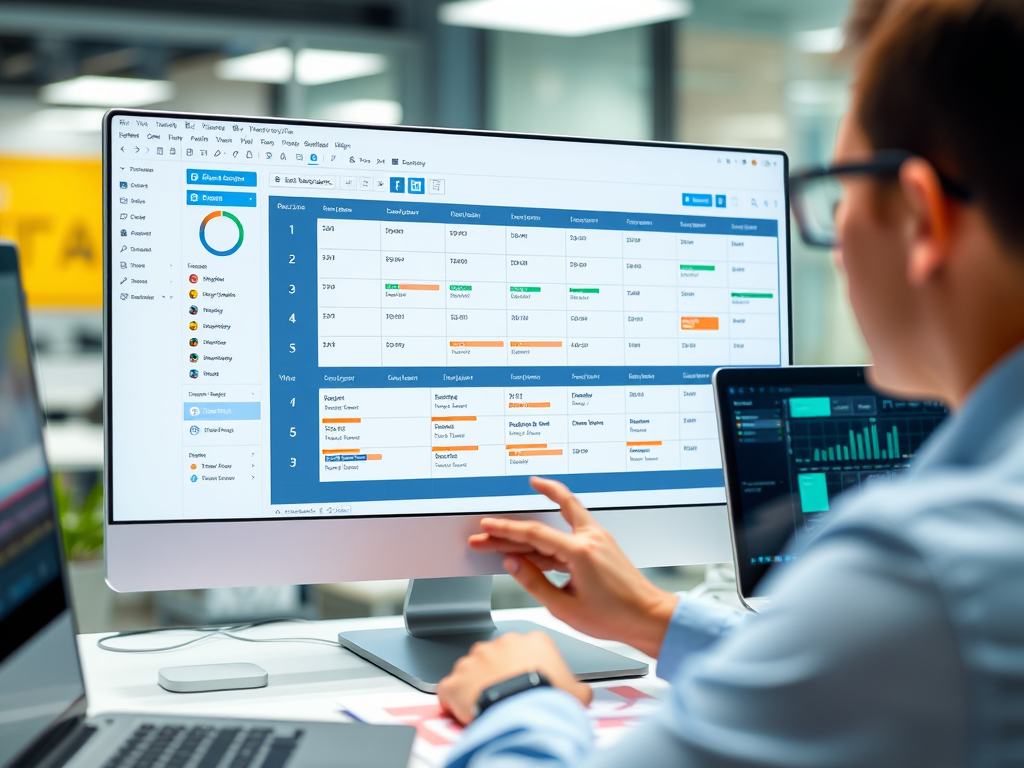
Microsoft Dynamics 365 Field Service empowers organizations to deliver on-site service to customer locations efficiently. One of its most powerful features is its ability to manage resources and scheduling.
This involves configuring the people, equipment, and facilities required to complete service work orders, and using intelligent tools to assign the right resources at the right time.
Why Is Resource Configuration and Scheduling Important?
Properly setting up resources and scheduling helps businesses:
- Ensure technicians with the right skills are assigned to work orders.
- Reduce travel time and optimize resource availability.
- Improve first-time fix rates and customer satisfaction.
- Automatically assign work orders using AI-based scheduling (RSO).
Types of Resources in Field Service
Resources in Field Service are not limited to people. You can configure:
- Bookable Resources: Technicians, equipment, subcontractors, or facilities.
- Resource Roles: Define the role a resource plays (e.g., Electrician, Plumber, Inspector).
- Resource Categories: Used to group and filter resources.
- Skills & Proficiencies: Specific qualifications required for particular services or tasks.
- Organizational Units: Represent business branches or divisions where resources belong.
Step-by-Step: Configuring Resources
1. Create Resource Records
Go to Field Service > Resources. Click on + New and fill in the following:
- Name: The name of the technician or equipment.
- Resource Type: Options include User, Equipment, Contact, Crew, or Facility.
- Organizational Unit: Assign to a business unit or location.
- Territory: Geographic area served.
- Start/End Availability: Working hours for the resource.
2. Assign Resource Roles
Define what kind of work the resource performs. Roles help in filtering and scheduling based on work type.
Example: A technician might have the role of “AC Installer,” meaning they can be assigned only to installation tasks.
3. Add Skills and Proficiencies
Assign technical or soft skills to resources with proficiency ratings (Beginner, Intermediate, Expert).
Skills are used to match resources to work order requirements.
4. Define Work Hours & Time Off
Configure a resource’s working hours, shifts, and breaks. Also, define vacation or non-working days using the “Time Off Requests.”
Understanding Scheduling in Field Service
Scheduling in Dynamics 365 Field Service revolves around creating Bookings for Work Orders using the Schedule Board.
Manual Scheduling
Dispatchers can drag and drop work orders onto the Schedule Board. They can view:
- Technician availability
- Territories and skills
- Travel time and map views
Assisted and Automated Scheduling (RSO)
Resource Scheduling Optimization (RSO) is an add-on that automates scheduling based on criteria like:
- Resource availability
- Skill matching
- Priority of the work order
- Travel distance
- Working hours and shifts
You can run RSO on demand or schedule it to run periodically.
Working with the Schedule Board
The Schedule Board is a visual interface that shows:
- Technicians and their bookings by day or week
- Work orders color-coded by status (Scheduled, In Progress, Completed)
- Map view to see technician and work order locations
- Alerts for overbooking, overtime, or skill mismatches
Other Scheduling Tools
- Resource Availability Search: Suggests matching resources based on time, skills, and location.
- Schedule Assistant: Recommends the best available technicians for a given work order.
- Crew Scheduling: Assign work orders to a team instead of individual technicians.
Best Practices
- Keep resource profiles updated with roles, skills, and availability.
- Use resource pools or crews for high-volume service requests.
- Segment Schedule Boards by territory or business unit to improve dispatcher focus.
- Automate low-complexity bookings using RSO to free up dispatcher time.
- Integrate with Maps for real-time travel and location intelligence.
Conclusion
Efficient resource management and scheduling are critical for successful field operations.
Dynamics 365 Field Service offers powerful tools to configure resources, define their capabilities, and schedule them intelligently.
Whether you rely on manual scheduling via the Schedule Board or take advantage of automation through RSO, a well-structured resource setup ensures faster response, optimized travel, and better customer satisfaction.

Leave a comment