
Microsoft Dynamics 365 Field Service helps organizations deliver exceptional field operations by managing work orders, scheduling resources, and optimizing service delivery.
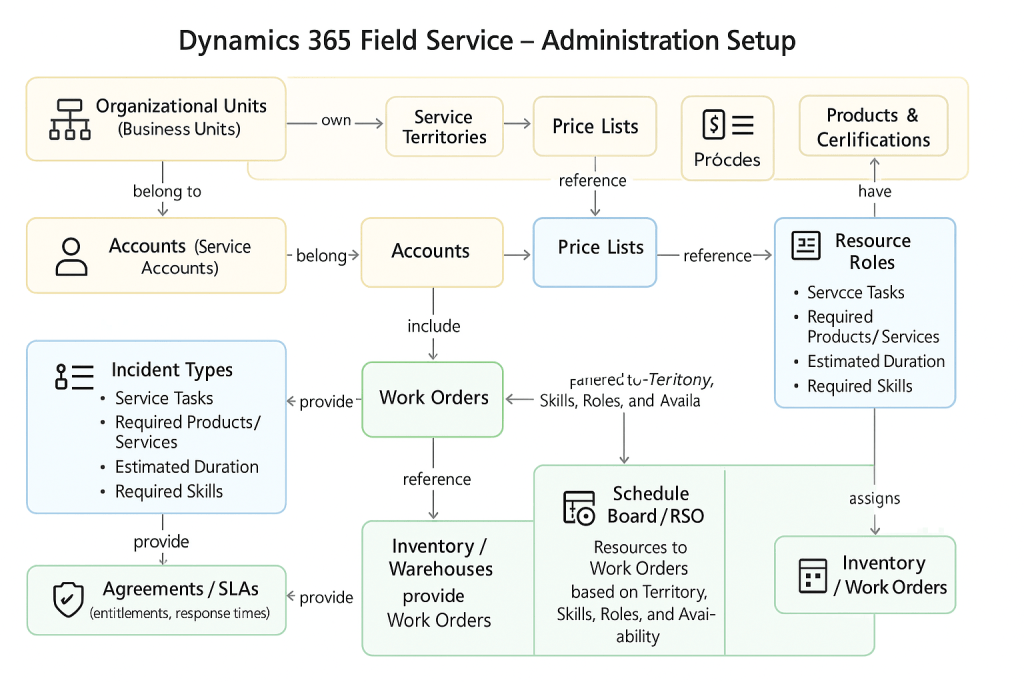
One of the first steps in setting up Field Service is configuring the default administration areas, which define the backbone of your service operations.
Proper configuration ensures that the system reflects your business processes, resources, pricing, and geographical needs.
What Are Default Administration Areas?
The Field Service application provides several configurable components (administration areas) to control service definitions, resources, tasks, pricing, and territories.
These areas work together to standardize how service requests are handled, how technicians are scheduled, and how customers are billed.
Key Administration Areas and Detailed Explanation
Below is a detailed explanation of each core administration area:
1. Service Territories
What it is: Service Territories define geographical boundaries where services are delivered.
Territories are useful when you have multiple regions or branches and need to assign work orders to the right team or technician.
Example: A company serving three states (Telangana, Andhra Pradesh, Karnataka) can create three territories so that each technician is only scheduled within their region.
How to configure:
Navigate to Field Service > Settings > Service Territories, create a new territory, and assign it to the appropriate resources or accounts.
2. Service Tasks
What it is: Service tasks are predefined steps or activities that technicians need to complete during a job.
They standardize work processes and ensure quality service.
Example: For an AC maintenance job, tasks could include “Check gas levels,” “Clean air filters,” and “Test cooling performance.”
How to configure:
Go to Field Service > Settings > Service Tasks and add all standard steps for your service operations.
3. Incident Types
What it is: Incident Types are templates for common service scenarios. They define required tasks, products, and services for a particular issue.
Example: “AC Installation” incident type can include required parts (pipes, mounting kits), service tasks (install unit, test performance), and estimated duration.
How to configure:
Navigate to Field Service > Settings > Incident Types and create templates with associated tasks and products.
4. Service Accounts and Price Lists
What it is:
Service accounts represent customers, while price lists define the cost of services and products. Price lists are crucial for accurate billing and quotes.
Example: For a premium customer, you may have a price list offering discounts, while standard customers use the default list.
How to configure:
Go to Field Service > Price Lists, create entries for services, products, and tax codes, then associate them with accounts.
5. Resources and Resource Roles
What it is:
Resources can be people (technicians), equipment, or subcontractors. Roles define what type of work each resource is qualified to perform.
Example: A technician with the role “Electrician” can only be assigned electrical jobs, while a role “Installer” handles installations.
How to configure:
Navigate to Field Service > Resources to add technicians or equipment. Define roles under Resource Roles and assign them to each resource.
6. Organizational Units
What it is:
Organizational Units (also called Business Units) represent different branches or divisions of your company.
They are useful for companies operating in multiple regions or departments.
Example: A company can create separate units for “Hyderabad Branch” and “Bangalore Branch” to manage resources separately.
How to configure:
Go to Advanced Settings > Security > Business Units and create new organizational units.
7. Tax Codes
What it is: Tax Codes define the tax rates applied to services or products.
These are especially important for generating accurate invoices.
Example: For Indian companies, you can configure GST tax codes like 5%, 12%, or 18%.
How to configure:
Navigate to Field Service > Tax Codes and add the applicable tax rates.
8. Products, Services, and Skills
What it is:
Products and services are the inventory or offerings used to fulfill work orders. Skills are attributes assigned to technicians for specific expertise.
Example: A skill like “HVAC Repair” ensures that only qualified technicians are assigned to HVAC work orders.
How to configure:
Add products and services under Field Service > Products. Define technician skills under Skills and associate them with resources.
Best Practices
- Define a clear organizational structure before configuring territories and resources.
- Use templates (incident types and tasks) to standardize operations and reduce errors.
- Review and update price lists regularly to reflect business changes.
- Leverage skill-based routing for faster and more efficient scheduling.
Conclusion
Configuring these default administration areas is a critical step in ensuring the Field Service application operates effectively.
A well-structured configuration not only improves scheduling and billing but also enhances the overall customer experience.
By setting up service territories, tasks, incident types, resources, and pricing correctly, your organization can optimize field operations and achieve better service delivery.

Leave a comment