
Welcome to Day 8 of the Dynamics 365 CRM Fundamentals Series! Yesterday, we covered how to capture and qualify leads. Now it’s time to focus on the next major milestone in your CRM sales journey: Opportunities.
In CRM, Opportunities represent qualified sales deals that are actively being worked on by your sales team. Managing them well ensures higher win rates, accurate revenue forecasts, and smarter decisions.
—
📌 What Is an Opportunity?
An Opportunity is a sales deal in progress. It’s created after a lead is qualified or directly added by a sales user. Each opportunity represents potential revenue and has a lifecycle defined by sales stages.
Common fields in an Opportunity record:
- Topic (deal name)
- Customer (Account or Contact)
- Estimated Revenue
- Close Date
- Sales Stage
- Owner (salesperson)
—
🧭 Sales Pipeline & Business Process Flow
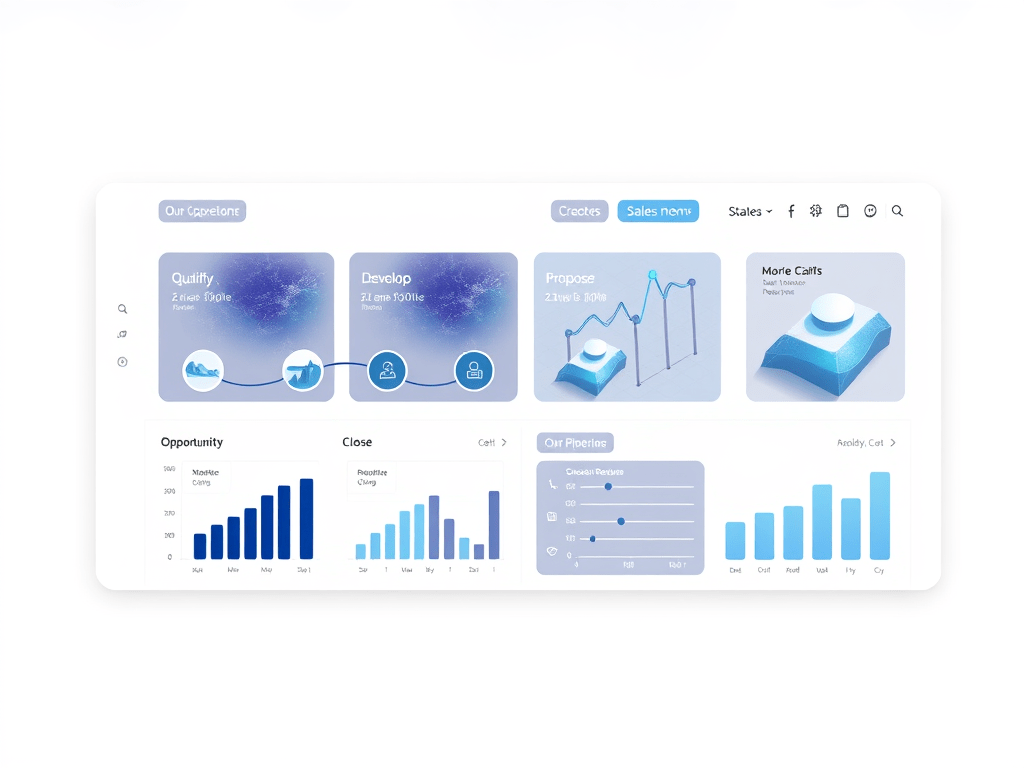
Opportunities follow a Business Process Flow (BPF) that represents your sales methodology. Common sales stages include:
- Qualify – Needs confirmed, basic fit check
- Develop – Proposal created, meetings held
- Propose – Quotation sent, negotiation starts
- Close – Final approval, win or lose
You can customize these stages to match your business needs using Power Apps.
✅ How to Create an Opportunity
- Navigate to Sales Hub → Opportunities
- Click + New
- Enter details like Topic, Customer, Budget, and Est. Close Date
- Save the record
If you qualified a lead earlier, the Opportunity will have linked Account and Contact automatically.
—
📈 Tracking Revenue & Forecasts
Opportunities include key forecasting fields:
- Est. Revenue: How much you expect to earn
- Probability (%): Likelihood of winning the deal
- Est. Close Date: When the deal will close
This data powers forecasting dashboards and helps managers plan pipeline and quotas.
—
🤝 Working with Products and Quotes
You can add Products and create Quotes from an Opportunity:
- Navigate to the Opportunity record
- Go to the Related → Products tab
- Add products, prices, quantities
- Create a formal quote for the customer
This allows detailed pricing, discounting, and bundling directly from CRM.
—
📊 Opportunity Views & Charts
Standard views available:
- My Open Opportunities – Personal pipeline
- Opportunities Closing This Month – Urgent deals
- Open Opportunities by Est. Revenue – Deal size focus
Example dashboards:
- Sales Pipeline Funnel
- Won vs Lost Opportunities (Pie)
- Opportunities by Owner (Bar)
- Sales Forecast by Month (Line)
—
🛠️ Close as Won or Lost
Once the deal is complete:
- Open the Opportunity
- Click Close as Won or Close as Lost
- Add details like actual revenue, reason for loss, notes
This ensures historical reporting is accurate and helps improve sales strategy over time.
—
💼 Real-Life Example: B2B Software Deal
- A lead downloads a whitepaper and is qualified by a rep
- The rep creates an Opportunity with a $25,000 estimated deal
- Meetings are logged, proposal sent via email
- Quote created in CRM and shared
- After negotiation, the customer agrees → Rep clicks Close as Won
All emails, quotes, notes, and products are linked inside the Opportunity for future reference.
—
🔁 Automating Opportunity Stages (Bonus)
You can automate stage transitions or notifications using:
- Business Rules – Move to next stage if proposal sent
- Power Automate – Alert manager if deal > ₹1 lakh
- Workflows – Assign tasks after stage change
—
📘 Coming Up – Day 9: Final CRM Recap + Certification Guide
In the final chapter, we’ll give you:
- A complete summary of what you’ve learned so far
- Tips to practice and apply your CRM skills
- A study guide to crack the Microsoft Dynamics 365 Fundamentals (CRM) Certification – MB-910
Perfect for beginners aiming to validate their CRM knowledge!
—
💬 Comment Below
Are you using the Opportunity module effectively? How do you forecast deals and track stage progress? Drop your thoughts or CRM success stories in the comments!
👉 Stay tuned for Day 9 – Your final push toward CRM mastery!

Leave a comment