
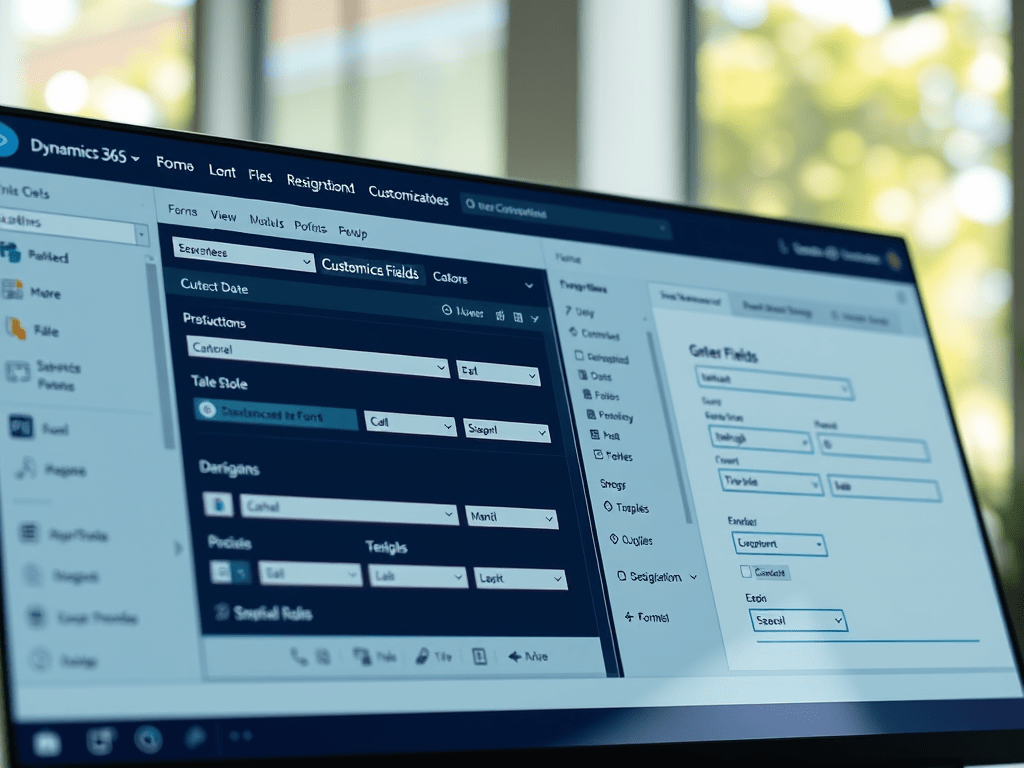
Welcome to Day 4 of our Dynamics 365 CRM Fundamentals course! In today’s session, we’ll unlock one of the most important superpowers of Dynamics 365: form and field customization — all without writing a single line of code.
This is what makes Dynamics 365 so powerful for businesses: you can tailor your CRM interface and database to match your unique needs, processes, and teams.
🎯 Why Customize Forms and Fields?
By default, Dynamics CRM provides basic fields like First Name, Last Name, Phone, Email, etc. But every business is different — you may want to capture:
- 🧾 Industry type for a customer
- 📅 Preferred appointment date
- ⭐ Customer rating (1–5)
- 📍 Geo region or sales zone
- 🛠 Product interests or service categories
That’s where custom fields and tailored forms come in.
—
🔧 Where Do Customizations Happen?
All customizations for tables (entities), forms, fields, and logic are done in the Power Apps Maker Portal:
- Visit https://make.powerapps.com
- Select your trial environment (if it’s not already selected)
- Click Dataverse → Tables
- Choose the table you want to customize (e.g., Contact, Lead, Opportunity)
Inside a table, you can modify:
- Columns – Data fields like “Industry Type”
- Forms – How data entry looks and feels
- Views – Lists and filters used across the CRM
—
🧱 Step-by-Step: Create a Custom Field
Let’s create a new field for the Contact table: “Preferred Contact Time”.
- In Power Apps, go to Dataverse → Tables → Contact
- Select Columns → Click + New column
- Enter:
- Display Name: Preferred Contact Time
- Name: preferredcontacttime
- Data Type: Choice
- Define Choices:
- Morning (9 AM – 12 PM)
- Afternoon (12 PM – 4 PM)
- Evening (4 PM – 8 PM)
- Save the column
This field is now part of your Contact table — ready to be added to forms!
—
🖼️ Step-by-Step: Add Field to the Form
- In the same Contact table, go to Forms
- Select the main form: “Contact (Main)”
- Drag and drop the Preferred Contact Time field onto the form canvas
- You can place it in a section like “Details” or create a new tab called “Preferences”
- Click Save and then Publish
Go back to Sales Hub → Contacts → Open any record → You’ll now see your new field on the form!
—
🧠 Types of Fields You Can Create
| Field Type | Use Case |
|---|---|
| Text | Customer notes, reference IDs, comments |
| Choice (Dropdown) | Industry, Region, Priority, Rating |
| Two Options (Yes/No) | Subscribed to newsletter? |
| Date & Time | Preferred appointment, subscription expiry |
| Number / Currency | Customer budget, estimated revenue |
| Lookup | Relate a Contact to another table (e.g., Salesperson) |
—
💼 Real-World Example: Customizing for a Real Estate Agency
If you’re managing property inquiries, you might customize the Lead table like this:
- Interested Property Type – Choice (Villa, Apartment, Land)
- Budget Range – Currency field
- Ready to Buy? – Two Options (Yes/No)
- Follow-Up Date – Date field
These fields can be added to both forms and views, helping agents prioritize hot leads and follow up on time.
—
⚙️ Add Logic with Business Rules (No Code!)
Once you have custom fields, you can apply conditional logic using Business Rules — another no-code tool in Dynamics 365.
Example: Show a field only when another field has a value
Let’s say:
– If “Ready to Buy?” = Yes, then show the “Follow-Up Date” field
– If not, keep it hidden
Steps:
- Go to the Contact table → Business Rules → + New Business Rule
- Set condition: If Ready to Buy = Yes
- Add Action: Show Follow-Up Date
- Save and Activate
This enhances user experience and prevents cluttered forms.
—
📊 Bonus: Update Views to See Your New Fields
Forms are for entering data. Views are for seeing data in tables/lists.
- Go to Contact → Views
- Edit the “Active Contacts” view
- Add columns like “Preferred Contact Time” or “Ready to Buy?”
- Reorder columns and Save
Now users can filter or sort by your custom fields directly from the grid.
—
📘 What’s Next in Day 6?
In Day 6, we’ll explore how to build Dashboards and Charts using the data we’ve been customizing:
- Create personal and system dashboards
- Use pie, bar, funnel, and timeline charts
- Track sales performance, lead quality, or follow-up status
Dashboards are where your data turns into actionable insights. Get ready to visualize your CRM!
—
💬 Let’s Chat!
Have you customized your CRM forms yet? What kinds of fields do your teams need? Drop your examples or questions in the comments — I’d love to hear how you’re using custom fields in real-life scenarios.
👉 Join me in Day 5 — we’re turning CRM data into beautiful dashboards!

Leave a comment