
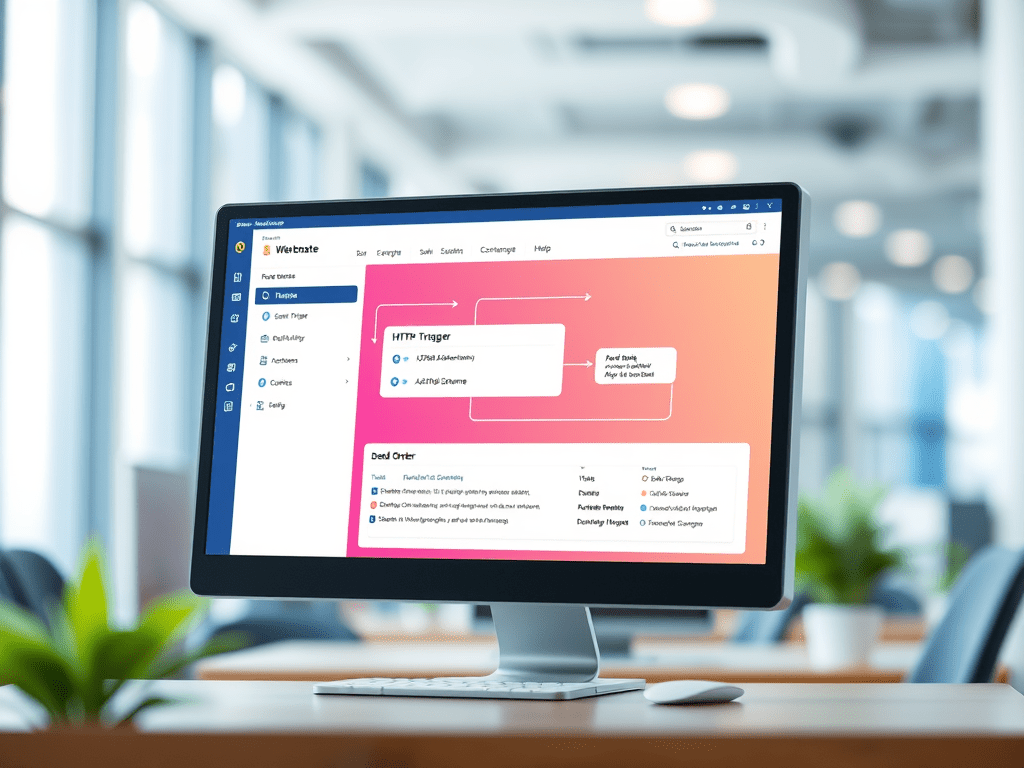
Overview
Webhooks are user-defined HTTP callbacks that trigger an action in one system when an event occurs in another. In Power Automate, webhooks can be used to listen for external events or send data to other systems in real time.
This article explains how to create a webhook in Power Automate, using a practical example: Triggering a flow when a new order is placed in a custom e-commerce application.
Why Use Webhooks in Power Automate?
Webhooks provide several benefits:
- Real-time communication: Unlike polling, webhooks push data as soon as events happen.
- Resource efficiency: No need to constantly check for updates.
- System integration: Easily connect non-Microsoft apps or custom systems to Power Automate.
Scenario: Trigger a Flow When a New Order is Placed
Goal:
When a customer places an order in a custom e-commerce platform, send the order data to Power Automate via a webhook to:
- Add the order to a SharePoint list (or Dataverse).
- Send an email confirmation.
- Notify the sales team via Microsoft Teams.
Step-by-Step: Creating a Webhook Trigger in Power Automate
Step 1: Create an Instant Flow with HTTP Trigger
- Go to Power Automate.
- Click Create → Instant cloud flow.
- Name the flow (e.g., “New Order Webhook”).
- Choose When an HTTP request is received as the trigger.
- Click Create.
Step 2: Define the Request Schema
To allow Power Automate to understand the incoming data, you need a JSON schema.
Here’s an example of a JSON payload that your webhook might receive from your e-commerce app:
{
  "orderId": "ORD12345",
  "customerName": "Jane Doe",
  "email": "jane@example.com",
  "items": [
    { "product": "Laptop", "quantity": 1, "price": 1200 },
    { "product": "Mouse", "quantity": 2, "price": 25 }
  ],
  "total": 1250
}
In the HTTP trigger, click Use sample payload to generate schema and paste the above JSON. This generates the schema automatically.
Step 3: Add Actions
Action 1: Add Order to SharePoint
- Use the Create item action.
- Choose your SharePoint site and list.
- Map fields from the webhook data to SharePoint columns (e.g., Order ID, Customer Name, Total).
Action 2: Send Email to Customer
- Use Send an email (V2).
- To:
email - Subject:
Your order ORD12345 has been received! - Body: Use dynamic content to personalize the message.
Action 3: Notify Team via Microsoft Teams
- Use Post a message in a chat or channel.
- Select your team and channel.
- Format the message with order summary.
Step 4: Save and Copy the Webhook URL
Once saved, the HTTP trigger will generate a unique URL. This is your webhook endpoint.
Example:
https://prod-00.westeurope.logic.azure.com:443/workflows/123abc456def.../triggers/manual/paths/invoke?api-version=2016-10-01...
Step 5: Configure the Webhook in Your Application
In your e-commerce app (or API backend), configure it to POST data to the Power Automate webhook URL when a new order is placed.
Example using curl:
curl -X POST https://your-power-automate-url \
  -H "Content-Type: application/json" \
  -d '{
    "orderId": "ORD12345",
    "customerName": "Jane Doe",
    "email": "jane@example.com",
    "items": [{"product":"Laptop","quantity":1,"price":1200}],
    "total": 1200
}'
Once the webhook is hit, the flow runs automatically.
Testing and Troubleshooting
- Use tools like Postman or browser-based REST clients to test your webhook.
- Check the Flow Run History to see input/output and any errors.
- Add Compose or Scope actions for better logging and error handling.
Best Practices
- Secure your webhook: Use authentication or tokens if the data is sensitive.
- Validate input: Add conditions to check for missing or malformed data.
- Log responses: Store data in Dataverse, SharePoint, or log tables for tracking.
- Rate limiting: Consider performance implications if high-frequency requests are expected.
Use Cases Beyond E-commerce
- IoT Sensors: Send real-time alerts to Power Automate when thresholds are exceeded.
- GitHub/Bitbucket: Trigger flows when a commit is made.
- Form Submissions: Process submissions from third-party form tools.
- Payment Gateways: Trigger flows after successful transactions.
Conclusion
Webhooks in Power Automate unlock the power of real-time automation by integrating external systems with Microsoft’s low-code platform. Whether you’re handling customer orders, processing alerts, or syncing data across systems, webhooks offer a simple and efficient way to initiate workflows and deliver value instantly.

Leave a comment